

Overview
The Providers page in the AI Center is where platform admins connect AI providers. Each connection is a key. Chat, agents and AI pieces across your platform run on these keys. Connecting keys centrally means:- Teams use company-managed provider accounts, not personal ones.
- Credentials are stored once, encrypted, and never shown to builders.
- You decide which models and which projects each key may use.
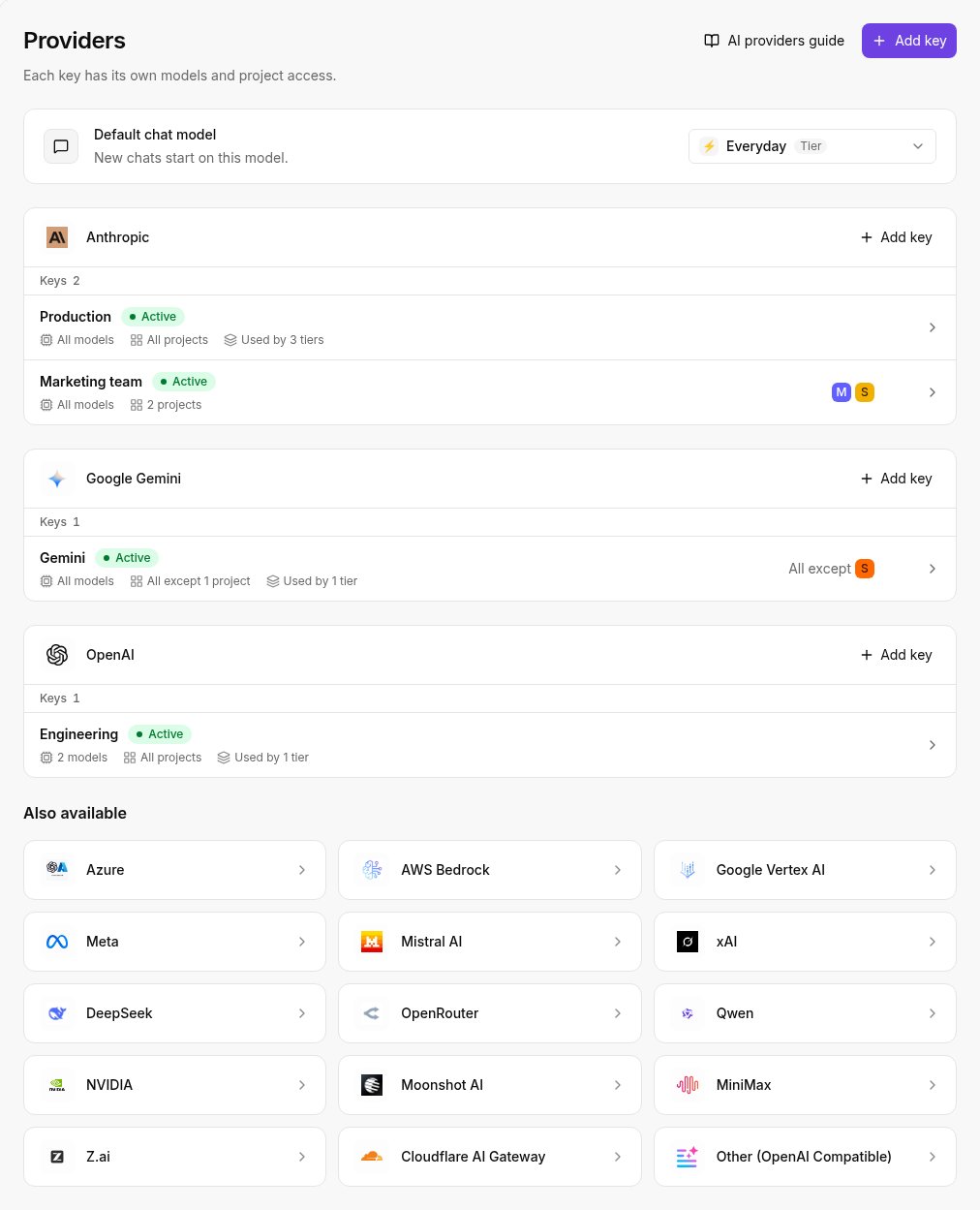
Supported providers
Model providers
- Anthropic
- OpenAI
- Google Gemini
- Meta
- Mistral AI
- Cohere
- xAI
- DeepSeek
- Qwen
- Moonshot AI
- MiniMax
- Z.ai
Cloud platforms
- Azure
- AWS Bedrock
- Google Vertex AI
- NVIDIA
- OpenRouter
- Cloudflare AI Gateway
- Other (OpenAI Compatible)
Add a key
1
Open the dialog
Click Add key at the top of the page, or Add key on a provider you already use, or pick a provider under Also available.
2
Pick the provider
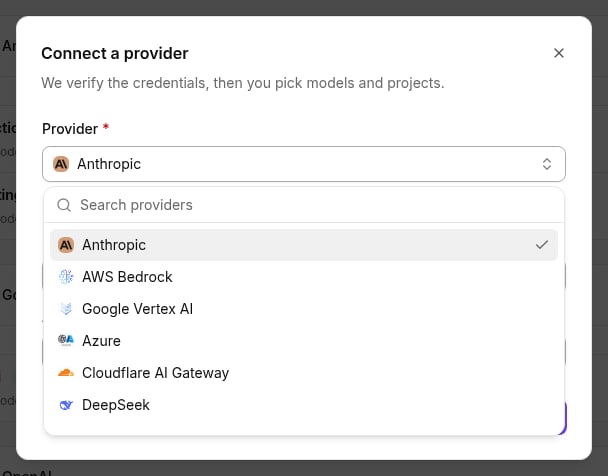
Search the provider list and pick one. The dialog links to where you get that provider’s credentials.
3
Name the key and enter the credentials
Give the key a name your team will recognize, for example
Marketing. Then fill in what the provider needs, such as an API key, a region or a base URL.4
Connect
Click Connect. Activepieces checks the credentials with the provider before saving. Then the key page opens, so you can pick its models and projects.
Key status
Every key shows a status badge:
The status updates on its own when AI calls succeed or fail. To check right now, open the key and click Recheck.
Key page
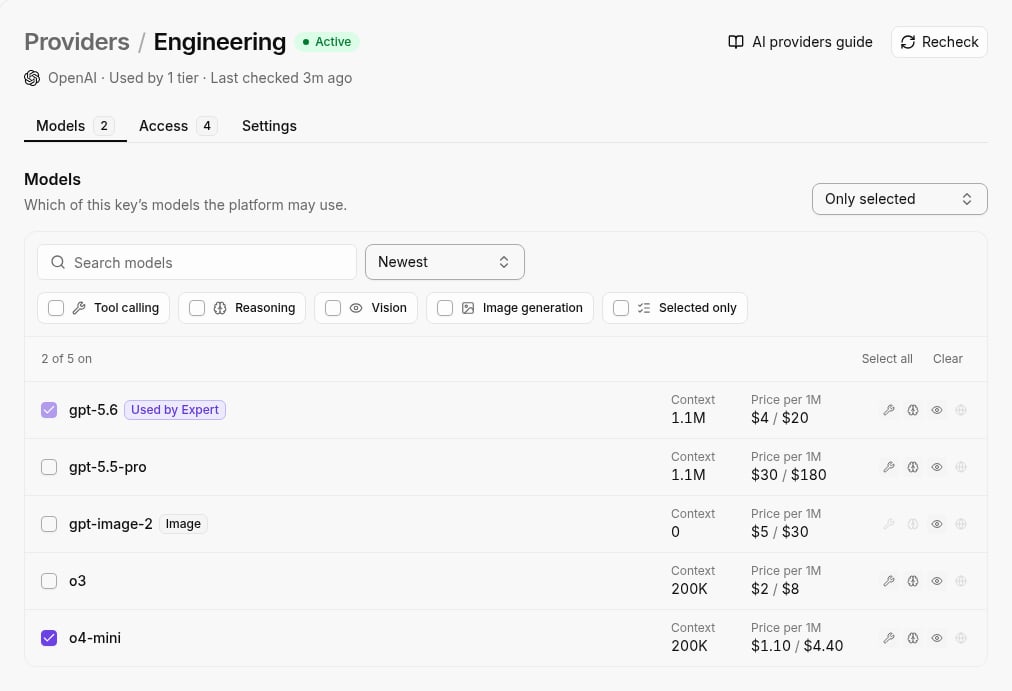
Click a key to open it. The page has three tabs.Models
Choose which of the key’s models the platform may use:- All models: every model the provider offers. New models from the provider are added automatically.
- Only selected: only the models you tick.
Access
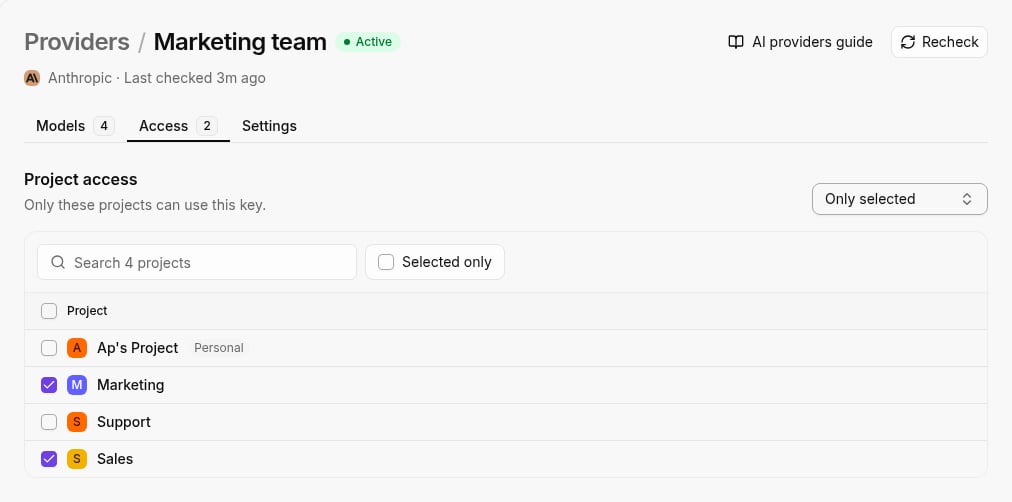
Choose which projects may use the key:- All: every project on the platform.
- Only selected: only the projects you tick.
- All except: every project except the ones you tick. New projects get access automatically.
Settings
- Name: rename the key.
- Credentials: click Replace to enter new credentials. Models and project access stay as they are.
- Delete this key: flows and agents that use this key will fail. A key that a tier still uses can’t be deleted; remove it from the tier first.
Default chat model
The Default chat model card at the top of the page sets the model every new chat starts on. Pick a tier or a model from one of your keys.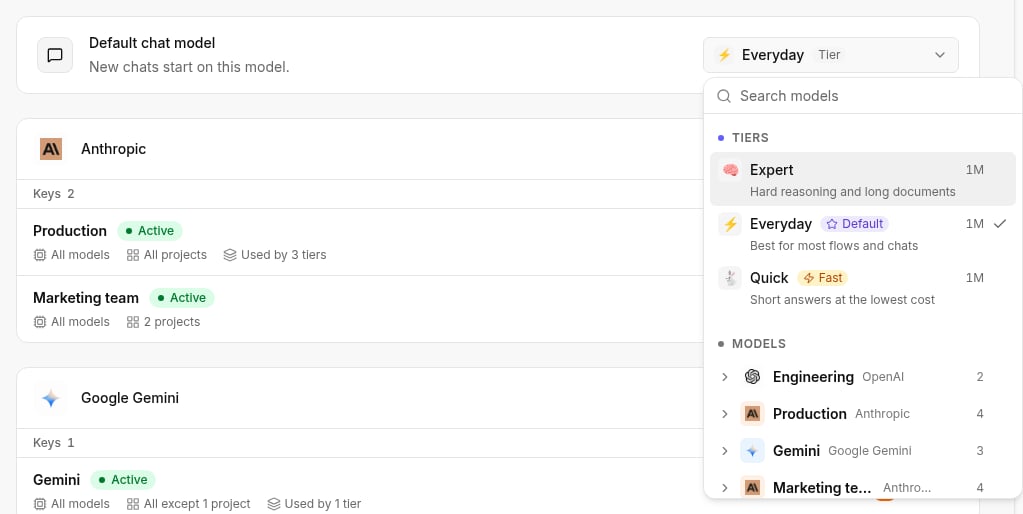
AI credits
On Cloud, your plan includes AI credits through a built-in Activepieces provider. You don’t add a key for it, and it is not listed with your keys. Credits show up as their own options in the model pickers, and their usage is billed on your plan. You can mix credits and your own keys.Plan
Your own AI keys need a plan that includes AI providers. Without it, the page shows a preview and an upgrade prompt. If your plan changes and no longer includes AI providers, existing keys become Read-only. You can’t open or edit them, but you can still delete them. Click Upgrade to get them back.Cost control and logging
Spend on your own key is billed by your provider. To add limits and an audit trail, put a gateway in front of it:- Set rate limits and budgets.
- Log and monitor every AI request.
- Track usage across projects.
Related
- Tiers: group models from your keys into named choices for builders.
- Capabilities: add web search, web scraping, image generation and embeddings.
- API reference: list keys, create a key, update a key, recheck a key, delete a key.